Amiga Screens: A Primer
Autumn 2026
One of the unwritten rules of the Internet seems to be that whenever something Amiga-related is mentioned, at least one Amiga fan (myself included) must show up and try to explain the concept of screens. Amiga screens can have different resolutions, we'll tell you, and one can drag them, we'll say, and other Amiga users rally in agreement, while non-Amiga users probably still don't get what's so great about screens. Until now, when this text has been written, in the hope of converting unsuspecting normies into full-blown Amiga screen lovers.
For practical purposes, this text will focus on the original Amiga graphics hardware, called OCS (Original ChipSet). Some hardware limitations were removed in the subsequent ECS (Enhanced ChipSet) and AGA (Advanced Graphics Architecture) upgrades, but the same basic principles and user experience still apply.
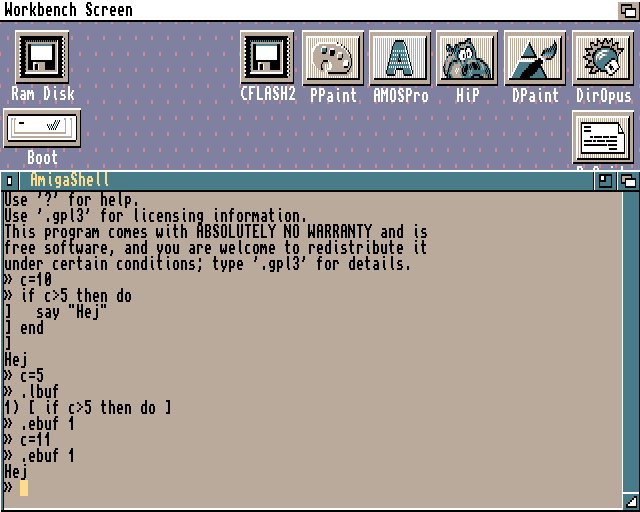
A typical Amiga screen, showing a Workbench desktop with a shell window open.
A Screen is a Screen is a Screen
The specific meaning of screen on the Amiga comes from the operating system, which uses this term to refer to a particular type of display area because it is, well, a screen. Amiga games and demo programmers aren't as bothered by this concept; the Amiga Hardware Reference Manual, for example, refers to a display area as a "playfield", and a demo coder might talk about raster splits, but for simplicity, let's stick to screen.
Hence, a screen on the Amiga is, basically, an area onto which graphics is drawn. Amiga screens can have different resolutions and colour depths, and a program can open any number of different-resolution screens to display graphics.
Today, we mostly use a single, fixed-resolution display area, which is a combined effect of how modern operating systems and flatscreen monitors work. In the heydays of CRT monitors, however, opening different-resolution displays was commonplace. An image viewer running on a VGA-capable MS-DOS machine, for example, might use a 16-colour, 720x400 pixel text mode resolution for browsing files, and then open a new 256-colour 320x200 display when viewing an image.
These variations in resolution and colour depth existed on basically all home computers, and were hardware-enforced tradeoffs to achieve reasonable speed and memory consumption for different use cases. Memory was very expensive at the time (Oh, how history repeats itself!) and the Amiga, which in its stock hardware configuration relied on a relatively small amount of RAM being shared between the CPU, video and audio hardware, offered a high level of control over these screen resolutions and colour depths.
Indices and Planes
The Amiga typically uses indexed palettes, meaning that a limited number of per-screen colour registers contain a user-defined colour value. These values are selected from a 12-bit colour space (or 24-bit, on AGA). For example, colour index 0 might be set to $000, which is black, and index 1 to $F00, which is red.
To manipulate the colour value of individual pixels, planar graphics is used, which means that the colour depth of a screen is increased by adding more bitplanes (bpl for short). Each bitplane is stored separately in memory, and in order to change the colour index of a pixel, a bit must be toggled in each plane.
Thus, a one-bitplane screen gives two colour indices, two bitplanes gives four and so on, up to five bitplanes and 32 colours on the original Amiga hardware (or 8 bpl and 256 colours on AGA).
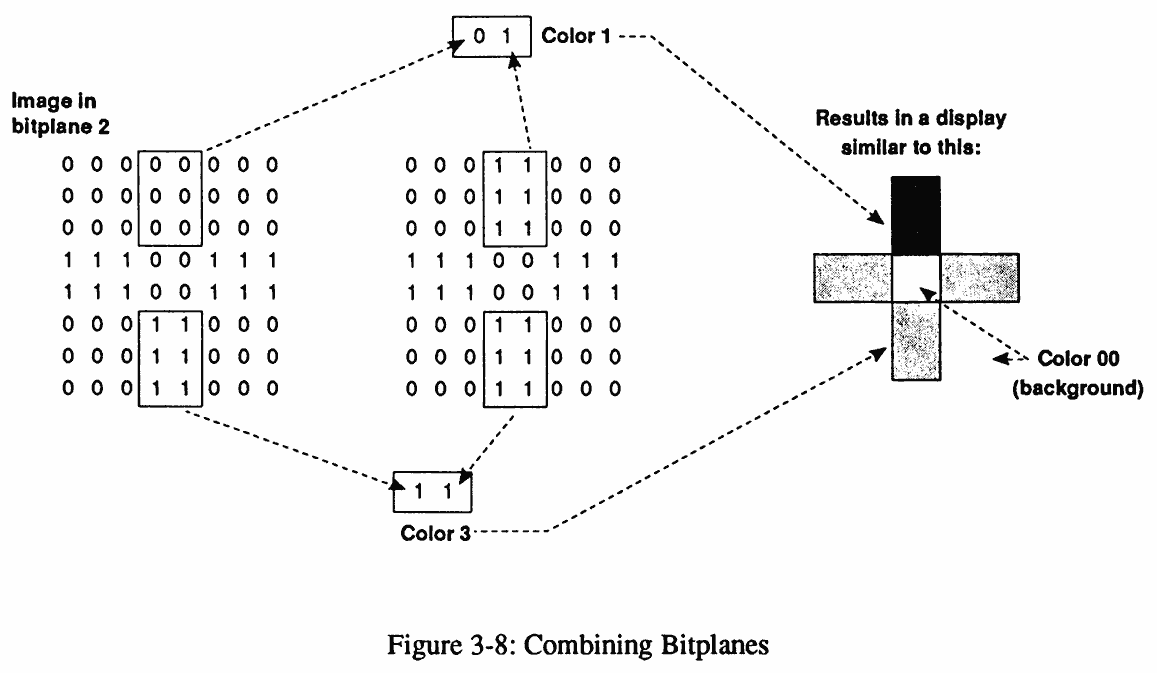
An illustration of how bitplanes are combined together to represent per-pixel colour indices. (From the Amiga Hardware Reference Manual)
On OCS and ECS, the maximum number of bitplanes per screen is determined by its display resolution, and these are designed to make sense on a PAL or NTSC television set. An OCS Amiga offers low-res and high-res. On PAL, low-res is 320x256 pixels (320x512 with interlace) in up to 32 colours (5 bpl). High-res is 640x256 (640x512 with interlace) in up to 16 colours (4 bpl). These base resolutions can be increased slightly by using overscan, which in high-res can be up to 724x283, but isn't guaranteed to be fully visible on all monitor types or television sets.
In low-res, a sixth bitplane can be used for HAM (Hold-And-Modify), allowing free use of all of the OCS Amiga's 4096 colours simultaneously (with some caveats), or EHB (Extra Half-Brite) which duplicates a 32 colour palette into 32 additional copies of the original colours, but with half the original brightness value.
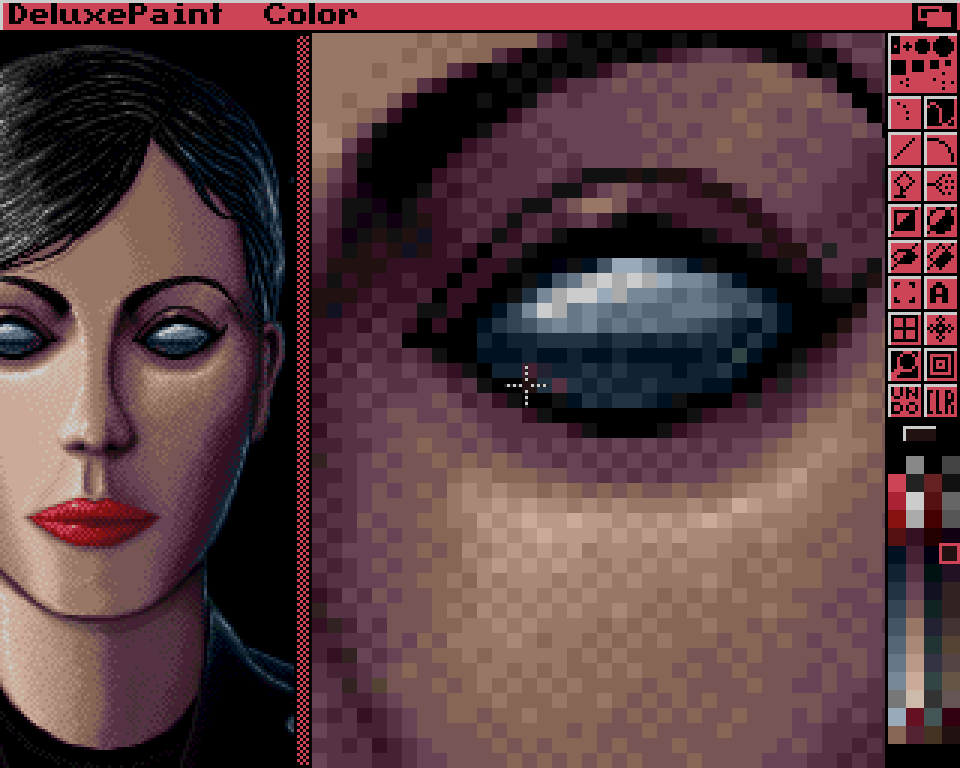
Deluxe Paint editing an EHB image. Note the colour selector in the bottom right of the screen: The two rightmost columns are "half-brite" copies of the colours in the first two columns. The half-brightness isn't always perfect, since it's limited by the 12-bit colour space.
Unlike most of its contemporary competitors, the Amiga has true, preemptive multitasking, for which planar graphics offers convenient resource frugality. A text editor might work just fine on a 2-colour screen, saving memory that can be used for simultaneously running a graphics program on a 32-colour screen. It's also memory-saving in the sense that only the exactly required number of bits are needed to store a single pixel while keeping memory addressing sane, instead of, say, allocating one byte per pixel and wasting the unused bits. In addition, a screen can be arbitrarily dimensioned and positioned, such as displaying a 320x50 pixel low-res screen at the bottom of the physical display area. Not using more pixels than necessary per screen will also help save memory.
Hardware Hijinx
The Amiga was originally designed as a games machine, which means it's got lots of hardware features for working with graphics. Repositioning a screen is instant, and scrolling an entire screen is extremely fast, to the point that even the operating system allows the user to configure a desktop screen that's larger than the visible area, and scroll around it using the mouse.
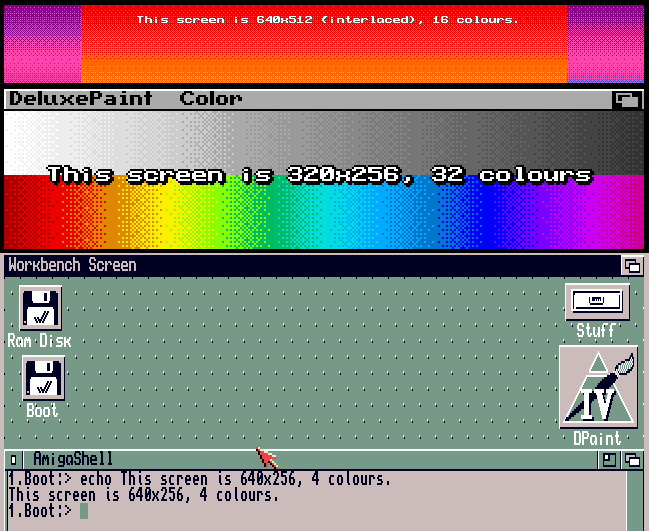
It's also easy to change the display resolution and colour depth at arbitrary points in the redraw cycle. This means that several screens can be combined at once, even overlapping, while maintaining a uniform display experience for the end user. Consider the following example:
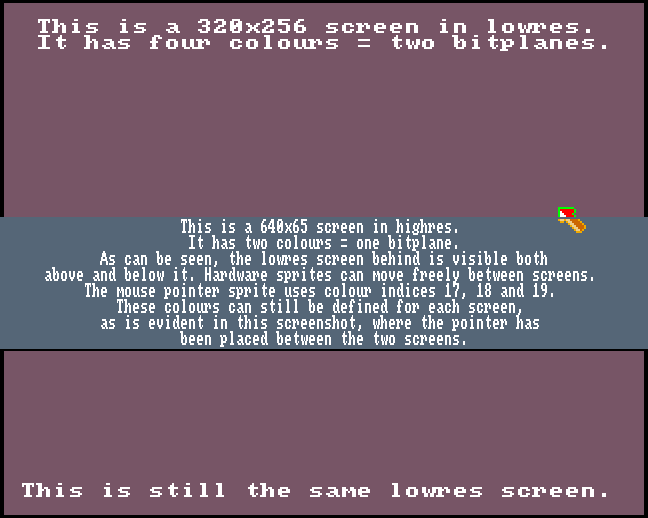
Simultaneous display of two screens with different resolutions and colour depths.
The above example has been created using the BASIC dialect AMOS, which has its own take on the screen concept and provides simple abstractions for working with the Amiga's graphics hardware. Any type of graphics operation can still be performed individually on any of the screens, such as drawing, scrolling, repositioning the screen and changing the palette.
This fast resolution and colour depth switching is controlled by the Amiga's copper (short for co-processor). The copper works in lockstep with the video rendering hardware and is also used for manipulating colour values and hardware sprites. Among other things, this can create the distinct Amiga feature called "copper gradients" or "copper bars", in which the colour value for a given colour register is changed once per horizontal line, producing striking gradients and more on-screen colours than what can be achieved using the 32 available palette indices.
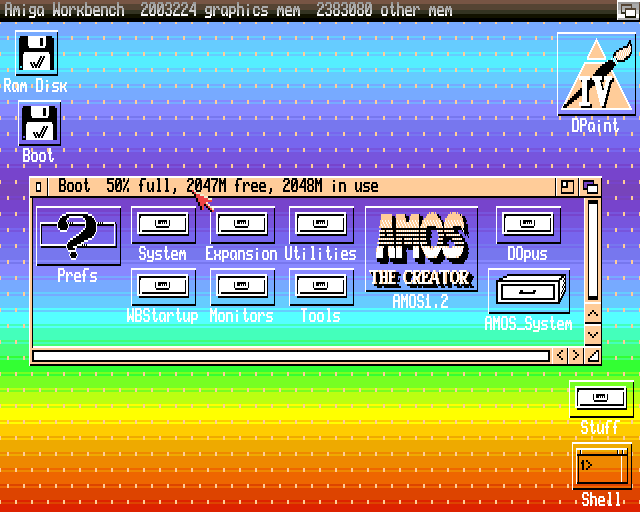
This is an ordinary 4-colour Workbench screen. The background gradient is created using the copper, by changing the value of colour index 0 at regular intervals during video rendering.
Combining screens with different resolutions and colour depths has a multitude of use cases. Even if the maximum number of colours per screen is 32, these 32 colours can be different on each screen. Thus, a game might display 64 or more colours simultaneously by using 32 colours for the main game area and 32 different colours for the user interface and/or status display. This can then be combined with copper gradients to further boost the colour count.
End User Experience
Apart from games, this swift graphics handling is also convenient when running multitasking productivity software, which (at last!) brings us to screen dragging.
Because of the low display resolutions offered by home computers and early PCs, most applications ran in full-screen mode, taking over the entire display area to show as much information (and user interface) as possible. When multitasking on the Amiga, the user can quickly switch between entire screens using either a button in the top right of the screen, or a system-wide keyboard shortcut. However, screens can also be dragged by clicking and, well, dragging the screen title bar downwards using the mouse. This will reveal another running program's screen behind it, as illustrated below.
An illustration of how screen dragging might look on a user's monitor.
I must confess that even though many of us Amiga fans go on about it, the actual usefulness of screen dragging is limited, at least in my personal workflows. However, the effect must have been rather stunning in 1985, when multitasking and colour graphics were rarely seen in combination other than on very expensive Unix workstations. One use case suggestion is that you can drag down your chat program screen just a bit to check on a file download progressing on the web browser screen behind it, but full-screen switching on the Amiga is so effortless that dragging usually feels a bit cumbersome.
In order to show just how snappy this screen handling is, I've prepared a short movie clip. It's filmed off a flatscreen monitor connected to an Amiga 600, which is a 7 MHz (that's 0.007 GHz) machine based around essentially the same hardware as the original Amiga 1000 in 1985. Here it's playing some music while also running a text editor and the graphics program Deluxe Paint, and of course performing screen switching and dragging:
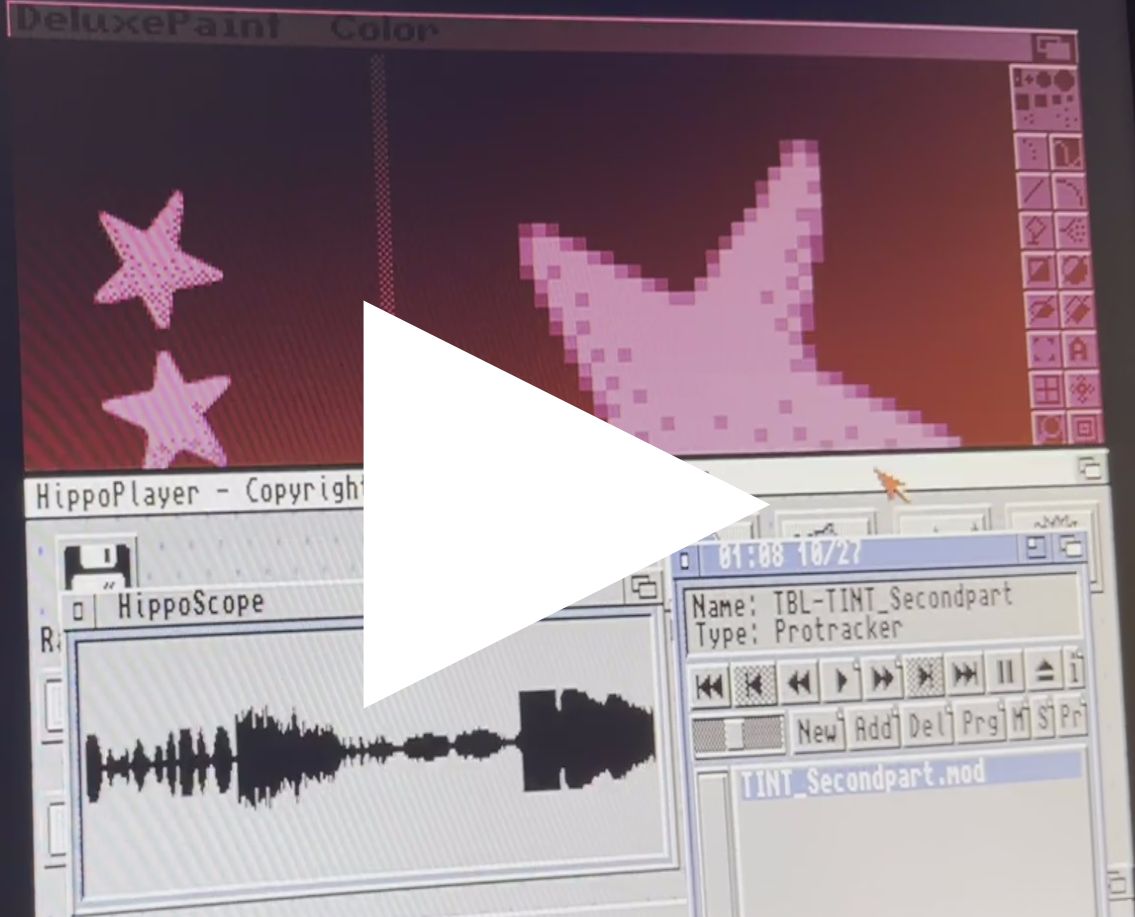
Click above to watch the movie.
Dual Playfields
The Amiga is also capable of something called dual playfields, which means that for two overlapping screens, colour index 0 on the frontmost screen becomes transparent and will display the contents of the screen below it. The other colour indices remain intact, and all the usual stuff can still be performed individually on each screen: scrolling, painting graphics, palette changes and so on.
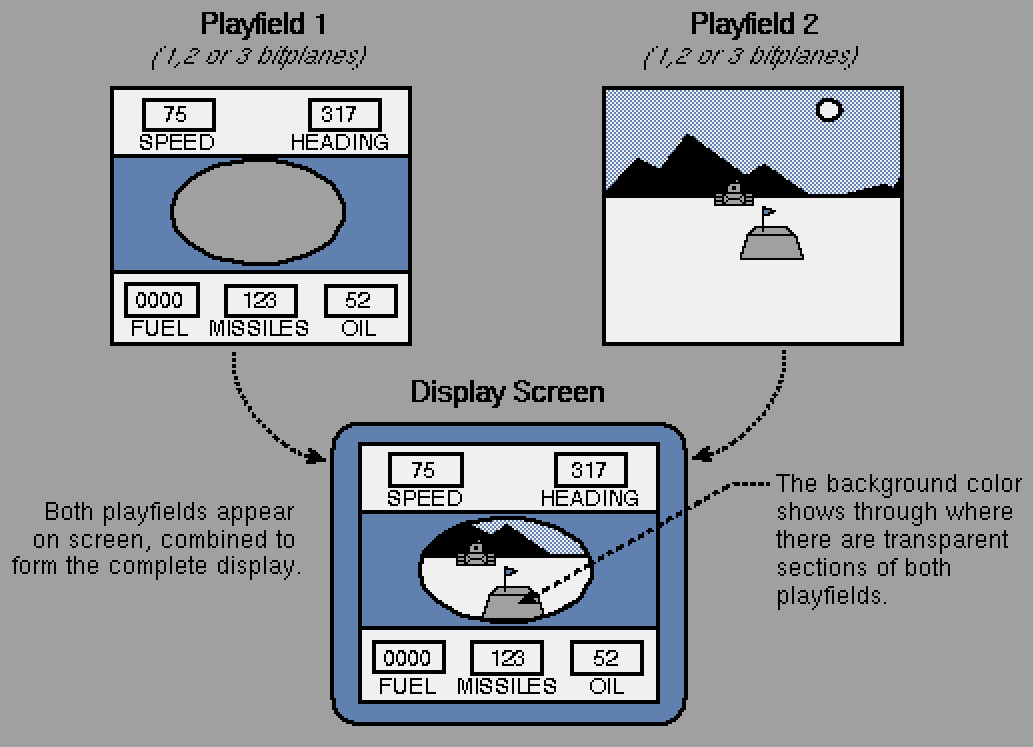
An illustration of Dual Playfields from the Amiga Hardware Reference Manual.
The screenshot below shows dual playfields in combination with sprites. The burgundy background and pink stars are painted on the background playfield, which is a 4-colour screen. The green and purple bars are sprites, with the sprite drawing priority set to position them between the two playfields. Everything else is drawn on the foreground playfield, which is an 8-colour screen. The Amiga hardware ensures that each layer can be smoothly animated even on a 7 MHz machine.
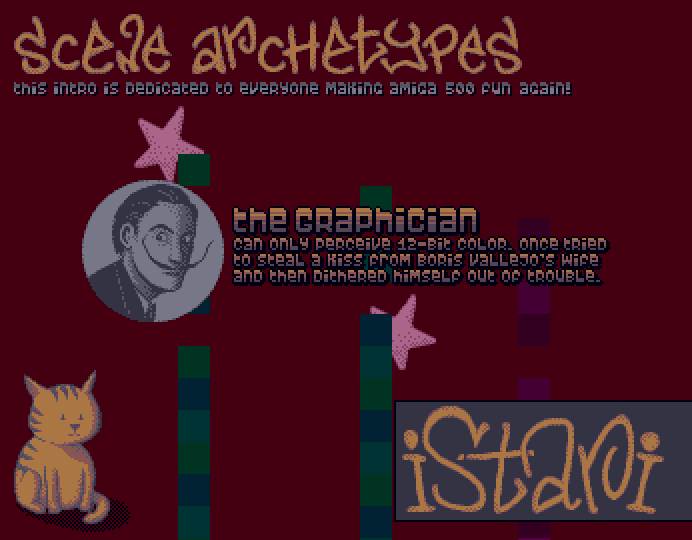
Curious readers can download or watch this little Amiga intro through Demozoo.
Full Screen Flow
On modern machines, I typically prefer to run programs as individual, stacking windows. Partly because there's enough screen real estate to go around these days, and partly because many modern programs are designed for this type of behavior. I do like to run some applications maximized to cover the entire screen, such as Visual Studio Code. Thanks to virtual desktops in my window manager, I can then swiftly switch to another working area, just as instantly as I do on my Amiga.
Some programs, however, look silly when maximized on a high-resolution widescreen display. I prefer reading man pages in an 80-column terminal window, and I find that orthodox file managers feel much more reasonable in squarish aspect ratios such as 5:4. The upside of running many windowed applications on the same screen is that they can all be visible at the same time, allowing for fast context switching. The downside is that certain mouse workflows are only really applicable to full-screen applications.
Take Directory Opus, for example. It's one of the best orthodox file managers I know of, and when running in full screen on my Amiga, I can do nifty things like slamming my mouse pointer to either edge of the screen and single-click, which will bring me to the parent of whatever directory is currently displayed in the corresponding lister.
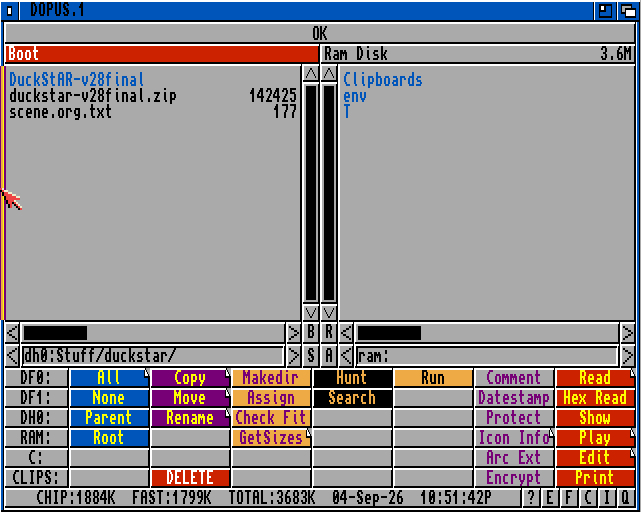
Clicking the edge of a Directory Opus file lister.
The exact same feature can of course be implemented in a more window-focused environment, but it would be pointless: Without the edge of the screen creating a boundary for the mouse pointer, the thin clickable area would be annoyingly hard to target.
A simpler pleasure, but one that's hard to replicate properly on a modern widescreen monitor, is that of editing code - or running just about any terminal-based application - in an 80x24 character full screen text mode. There's something about those proportions that just feels right.
So Much More
This text only scrapes the surface of screens and the Amiga graphics hardware. Planar graphics, for example, allows for a lot of interesting trickery and effects by manipulating only some of the bitplanes making up a pixel's colour value. And we haven't even mentioned the Amiga's blitter hardware yet, which allows for blazingly fast graphics memory copying with various modes for combining or masking out bitplanes - exceptionally useful for high-octane arcade action.
Sprites have been mentioned only briefly, without discussing how they can be used to add extra colour to low-bitplane screens or be multiplexed together to add more sprite colours. If you'd like to know more about that, I recommend Codetapper's Amiga Site which examines the graphics aspect of Amiga games programming in great detail. I highly recommend the article on Shadow of the Beast, which uses the Amiga's graphics hardware very creatively, resulting in a visually stunning game with several layers of smooth parallax scrolling.
Summary
Amiga screens have many interesting properties:
- Screens use planar graphics, which saves memory and allows for gradual increments of available on-screen colours from two to 32.
- Screens can be arbitrarily dimensioned and positioned.
- Several screens with different resolutions (pixel sizes), colour depths and palettes can be displayed simultaneously, and overlap arbitrarily to reveal the screen(s) behind them.
- Switching between two different screens is instant.
- Screens can be gradually dragged to reveal another screen behind them.
- Dual Playfield uses an "alpha-channel" to combine the graphics of two different screens.
Amiga software, including the operating system, makes good use of these features. This allows for productive multitasking workflows despite the machine's limited hardware resources and relatively low display resolution.
Now, since I've mentioned the Amiga online, I just have to wait for some Amiga fan to send me a mail trying to explain what's so great about screens. In the meantime, take care and happy hacking!